A Windows desktop Point-of-Sale app for restaurants — table-wise ordering, product & variant management, receipt/kitchen printing, staff PIN logins, and sales reporting, all running offline on a local database.
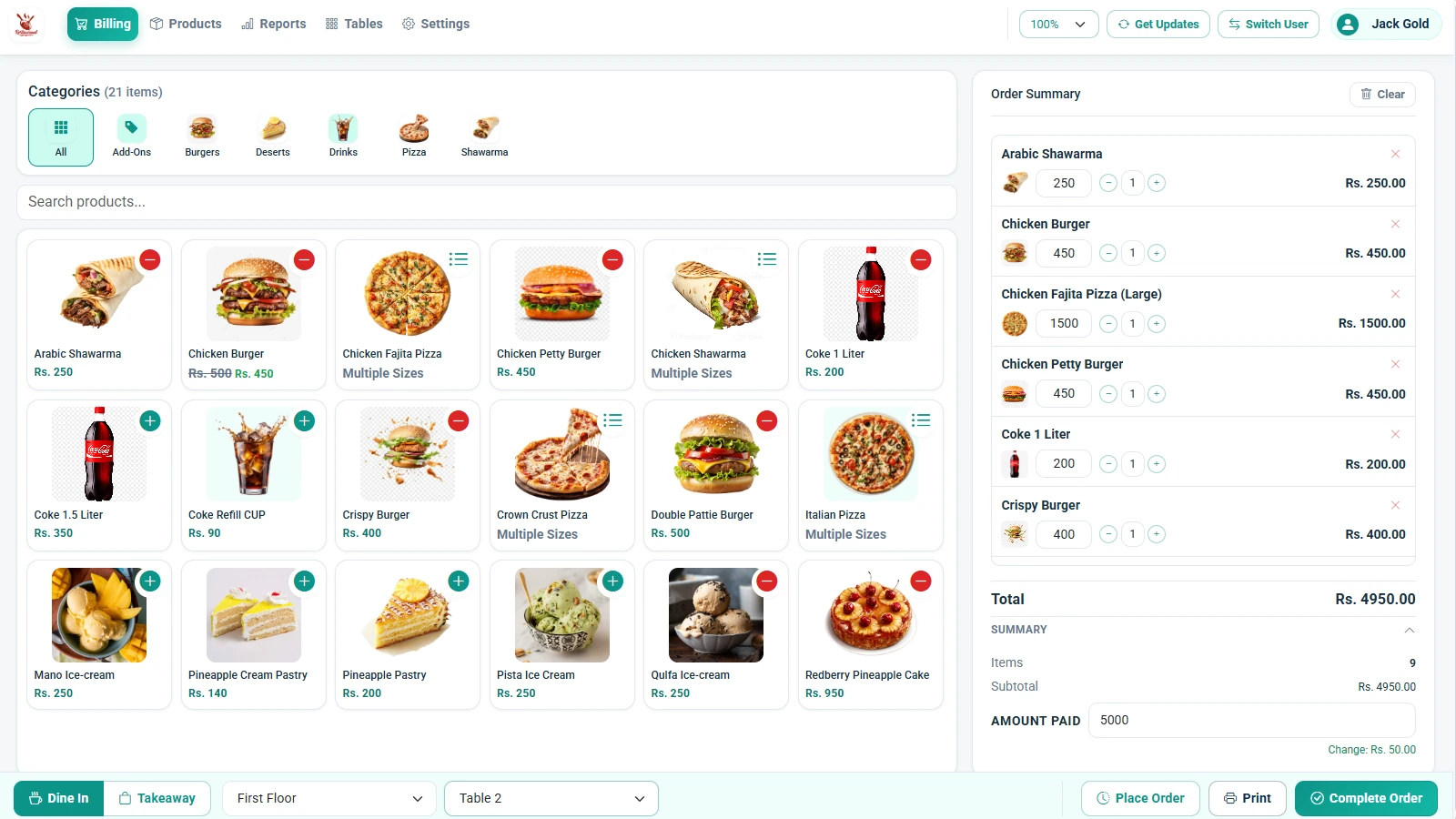
TMEX Restaurant POS is a Windows desktop application (built with Electron and a local SQLite database) designed for restaurants, cafes, and dine-in food businesses that need a fast, offline-capable billing system. The app is licensed per device: on first launch it requires a license key to be activated against the vendor's server, tied to the machine's hardware ID, with a daily background re-verification check (and a grace period if the device goes offline). Once activated, staff sign in using a simple 4-digit PIN (entered via an on-screen keypad or the physical keyboard) instead of full usernames and passwords — ideal for a shared front-counter terminal. Staff accounts and their page-level permissions (Billing, Products, Reports, Tables, Settings) are synced down from the vendor's website via a "Get Updates" action, and the navbar automatically shows or hides sections based on what each logged-in staff member is allowed to access. At the center of the app is a dine-in table management system: the restaurant is organized into "Apartments" (halls/sections, e.g. Gents Hall, Family Hall, Basement), each containing individual tables. Every table shows a live Available/Booked status, and tapping a table opens a new order or resumes the existing one directly in Billing. Orders not tied to any table are treated as Takeaway. The Billing screen is the core point-of-sale workflow: staff build up a cart from the product catalog, apply a whole-order discount (percentage or fixed amount, toggleable from Settings), and complete the sale. Each completed sale gets a unique 5-digit invoice number. Orders can be left "open" (pending) for a table and completed later, or cancelled with a mandatory reason recorded against the sale. Completed and cancelled sales, along with their line items, are fully retained for reporting. Product management supports categories (each with a square icon image), simple products (price, discounted price, stock quantity, active/inactive status), and products with multiple variants (e.g. sizes) — each variant carrying its own price, discounted price, and stock count. Printing is a first-class feature: the app talks to the Windows print system through Electron's main process to list available printers and send print jobs. Two separate printer profiles can be configured — a customer receipt printer and a kitchen printer (falling back to the receipt printer if not set) — along with the receipt paper width (e.g. 80mm). From any sale, staff can print a customer receipt or a KOT (Kitchen Order Ticket) showing the table/takeaway label and items, and a live receipt preview is shown before printing so formatting can be checked. The Reports page gives a filterable sales view — Today, Yesterday, This Week, This Month, Last Month, or a custom date range — combined with a status filter (open/completed/cancelled). It shows summary totals (total sales amount, transaction count, items sold) and a per-sale table where staff can view the receipt, reprint the KOT, or push a pending order back into Billing to complete it. Settings covers everything an operator needs to configure without contacting support: shop name, address, phone, logo and payment QR code upload, a rich-text receipt footer and payment-details editor (bold/italic/alignment/font size) with a live receipt preview, printer selection, the discount toggle, and license/plan details (plan name, activation date, expiry, days remaining, status, with a one-tap WhatsApp renewal link). A Cloud Backup feature uploads the local database (schema and transactional data only, excluding images) to the vendor's server whenever internet is available, and a Local Backup option lets the shop owner export a .db copy to any folder on demand as a manual safety copy. The underlying SQLite database is self-migrating: on every app start it creates any missing tables and columns automatically, so updates to the app never require a manual database migration step from the shop owner.
Per-device activation tied to a hardware ID, with daily background re-verification and an offline grace period so the app keeps working without a live internet connection.
Fast 4-digit PIN sign-in (on-screen keypad or physical keyboard) instead of full username/password, suited for a shared counter terminal.
Each staff member is granted access to specific pages (Billing, Products, Reports, Tables, Settings); the navigation menu shows only what that staff member can use.
Pulls the latest staff list, PINs, permissions, and shop settings from the vendor's server into the local app.
Organize the restaurant into halls/sections, each with its own set of tables; add, edit, and delete both.
On first launch, enter the license key provided by the vendor; the app validates it against the vendor's server and ties it to this computer.
Use "Get Updates" to pull down the staff list and shop settings, then sign in with your 4-digit staff PIN. The menu automatically shows only the pages you're permitted to use.
Create your restaurant's halls and tables, and build your product catalog with categories, prices, stock, and variants (e.g. sizes) as needed.
Tap an available table (or start a takeaway order), add items to the cart from the product catalog, and apply a discount if applicable.
Tell us about your restaurant and we'll help you get set up — usually within one business day.
Each table shows Available or Booked at a glance, with per-hall counts of total/booked/available tables.
Start a new order directly from a table (or as a takeaway with no table), and resume an existing open order from where it left off.
Organize products into categories, each with its own icon image, and filter the product list by category or active/inactive status.
Products can have multiple variants (e.g. sizes), each with its own price, discounted price, and stock quantity.
Track stock quantity and set a discounted price per product (or per variant) alongside the regular sale price.
Apply a percentage or fixed-amount discount to an entire sale, with the option toggled on/off from Settings.
Leave an order "open" against a table and complete it later, or cancel it with a mandatory reason that's stored with the sale.
Every completed sale receives a unique 5-digit invoice number, shown on receipts and in reports.
Print a formatted customer receipt (shop logo, address, payment QR, itemized list, discount, footer message) to a configured printer.
Print a separate kitchen ticket showing the table/takeaway label and ordered items, optionally to a dedicated kitchen printer.
Choose paper width (e.g. 80mm), and customize the receipt footer and payment details with a rich-text editor (bold, italic, alignment, font size) with live preview.
View sales by Today, Yesterday, This Week, This Month, Last Month, or a custom date range, filtered further by order status.
At-a-glance totals for revenue, transaction count, and items sold for the selected period.
Reopen and reprint any past sale's receipt or kitchen ticket directly from the reports table.
Configure shop name, address, phone number, logo, and payment QR code, all reflected live on printed receipts.
Upload the local database to the vendor's server on demand (requires internet), with the last-backup timestamp tracked and displayed.
Save a manual copy of the database file to any folder on the computer via a native save dialog.
View the current plan, activation date, expiry date, days remaining, and status, with a one-tap WhatsApp button to contact sales for renewal.
The app automatically creates and updates its local SQLite tables/columns on startup, so app updates don't require manual database changes.
Billing, table management, product management, printing, and reporting all run against the local database and function without an internet connection (only activation, staff sync, and cloud backup require it).
Leave the order open on the table for later, complete it to generate an invoice, or cancel it with a reason if needed.
Print the customer receipt and/or the kitchen order ticket (KOT) to the configured printers.
Check sales summaries and individual transactions by date range and status, and reprint any past receipt or KOT as needed.
Periodically run a cloud backup (when online) or export a local backup file to keep your sales and product data safe.